
The disclosure of Clause 44 is mandatory in Tax Audit Report for the assessment year 2022-23 and onward. Every tax payer to whom the tax audit is applicable has to also furnish clause 44.
The taxpayer may or may not be registered under Goods and Services Tax Act but the disclosure is mandatorily required to be furnished.
The format of clause 44 is given below:
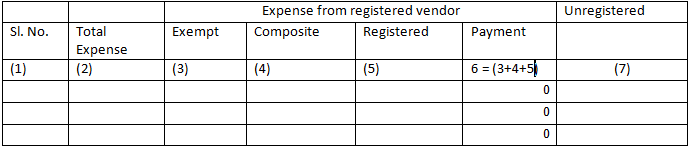
The above format requires the bifurcation of ‘total amount of expenditure incurred by the taxpayer during the financial year’ into two heading – one is – the expenditure incurred for purchase or availing services from entities registered under GST and second the ‘expenditure incurred for purchase or availing services from entities not registered under GST’.
The expenses debited to Profit & Loss a/c will form the basis of this clause 44. That is the total expenses as appearing in Profit & Loss a/c will be shown in column (2) of the table above.
The expenditure incurred from registered entities will be further bifurcated into three headings viz. purchase of exempted goods or services (column (3)), purchase from a composition dealer (column (4)) and purchase of taxable goods or services (column (5)).
There is no break-up required for an expense incurred toward purchase or availing services from an unregistered dealer (column (7)).
The expenses such as ‘Salaries and PF, ESIC etc. will not form part of the report/ clause 44 as they are not an expense incurred from any vendor. However, the staff welfare expenses like canteen service, uniform purchase, tea, coffee etc. is an expense born from either a registered vendor or an unregistered vendor and therefore need to be considered for reporting.
Finance cost like interest on bank loan also will not be reported. Likewise depreciation, bad debts, provisions for expenses, power and fuel, petrol, diesel etc. will not form part of clause 44 disclosures.
Rest of the expenses like raw material, packing material, consumables, engineering items, professional fees, legal expenses, rent, rates and taxes, insurance etc. which are forming part of Profit and Loss a/c will be considered for this clause.
The total of all expenses reported in Financials will be considered in column (2) as stated above either expense head wise or as s single amount. This is because the clause does not clarifies as to whether the reporting is required expense wise or a single expense amount will suffice for reporting. So, one may furnish a single amount and keep the head wise expenses working as a supporting of the clause for audit and reference.
As shown in table below, the expense heading is for reference and amount in column (2) will only form the basis of the reporting including their further bifurcation into taxable, exempt, composition, registered and unregistered at respective columns. The amount at column (6) is the sum of column (3), (4) and (5) and the total of column (6) and column (7) will be equal to expense at column (2).
The working file will look like –
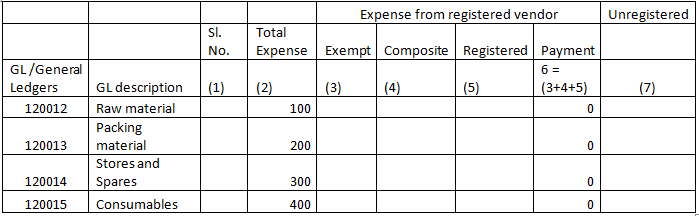
How to bifurcate the expenses into ‘purchases from registered vendor’ and their further bifurcation into taxable, exempt and composite vendor purchase and ‘purchase from unregistered vendor’.
The purchase report based on which return in Form GSTR-3B is prepared to be considered first. The report must have expense GL. Expense GL means the GL into which the cost has been debited while accounting the invoice. If said GL is not captured then it is suggested to add in the report with the help of IT/SAP / report developer etc. If the taxpayer is using SAP system then tax codes should also be captured to identify the product as exempt, taxable etc. or based on the taxes viz. IGST, CGST, SGST and GSTIN of the vendor the expenses can be segregated as taxable, exempt etc.
In the working, add a new column as ‘Remark’. Apply filter on ‘GSTIN’ in purchase report. Select blank and classify it as ‘unregistered’. Apply filter on transactions having GSTIN, select tax codes of exempt or in tax column as zero and check the item description as exempt to classify it as ‘registered-exempt’. And the transaction having GSTIN and GST amount then classify it as ‘registered-taxable’.
If the GSTIN is available and goods purchased /expense incurred is taxable and still GST is not charged by the vendor, then it means the vendor is a composite dealer. Classify such transaction as ‘registered-composite’. Alternatively, the GSTIN of the vendor can be searched at www.gst.gov.in to fetch the status of the vendor’s GSTIN as ‘regular’ or ‘composition’ dealer.
Now, based on the fields viz. Remarks, General Ledgers (GL) and expense amount make a pivot table. Select GL at the ‘Row labels’ and remarks at ‘Column Labels’ and amount in ‘Values’ column.
The pivot table will look like –
| Sum of amount | remarks | |||||
| gl codes | gl des | registered-composite | registered-exempt | registered-taxable | unregistered | Total Expense |
| 120012 | Raw material | 100 | 100 | |||
| 120013 | Packing material | 200 | 200 | |||
| 120014 | Stores and Spares | 300 | 300 | |||
| 120015 | Consumables | 400 | 400 | |||
| Total Expense | 300 | 200 | 100 | 400 | 1000 |
In order to plot the expense in the base file, apply Vlookup like:
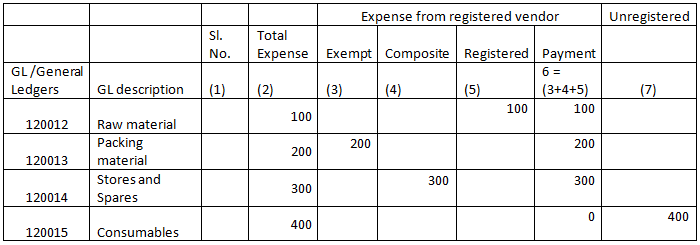
The expense will get plotted in respective columns after applying pivot as registered-exempt at column (3), registered-composite at column (4), registered-taxable at column (5) and unregistered vendor purchase at column (7).
There could be some entries in purchase report of which expense GL is not appearing. Instead clearing account is appearing. This is because in SAP system while GRN the inventory GL is debited. The expense GL is hit after the MIRO/Finance posting is done. Upon completion of MIRO the expense gets debited to expense GL / consumption GL.
As stated above, when a raw material is purchased it is accounted as an inventory. Thereafter when a production team makes a requisition to stores department to issue the inventory for consumption in their plant area , the material gets accounted into consumption GL.
The said consumption GL forms part of Profit & Loss account. Hence, in the purchase report wherever inventory or clearing GL appears identify their consumption GL and plot it in an addition column in the report.
With the basis of the purchase report most of the expenses GL as appearing in column (2) of table above would have been classified into respective expense head/column. And, for the expenses not captured in the purchase report for any reason then the respective expense’s GL dump/report to be downloaded in excel.
Say for e.g. insurance GL. Take a dump/download from accounting system having, inter-alia’, ‘offsetting GL’ column, GL name etc.. In the offsetting GL column the vendor code is reflected (not for all transaction) and wherever the GRIR Clearing GLs appears the vendor code can be pulled from clearing GL dump having document number. Apply vlookup on document number and vendor code.
Once the vendor code is fetched then apply vlookup basis GSTIN with the vendor master. Same logic as discussed above need to be applied in the report i.e. add a column as ‘Remarks’ and classify expense as registered-taxable, registered-exempt, registered taxable and unregistered vendor.
In these GL, there will be an entry like – provisions accrued for an expense, pre-paid expense, rectification etc. Their classification into ‘registered’ or ‘unregistered’ purchase would be difficult. But, the logic one may apply is that, if the proportion of expense is more against registered-taxable then classify the aforesaid expense as ‘registered-taxable.
In the GL report tax codes also appear. It helps in classifying entry as taxable or exempt.
The expense can be further bifurcated and furnished as exempt in column (3), composition dealer purchase in column (4), registered purchase (5) and unregistered vendor purchase in column (7).
At the end, apply summation formula at the bottom of each of the column (3), (4), (5) and (7) individually. Apply percentage formula as exempt to total expense, composition to total expense, taxable to total expense and unregistered to total expense. The percentage so arrived will give a glimpse/idea as regard the pattern of purchase i.e. what % of purchases / expenses are from a registered vendor, taxable, exempt and purchase from unregistered vendor.
In case, the percentage does not depict fair scenario of type of purchase then revisit purchase report and expense GL and recheck the text field for nature of purchase and ensure correct classification is assigned to each line item.
By the above stated process, a clause 44 gets prepared to the best possible manner.

Share this content: